
This tutorial will guide you through how to setup Pascal targeting WebAssembly without using Pas2JS — pure Pascal code directly compiled to WASM
Why does this guide exist? It’s because I find so many outdated documentations — many of them are from 2021, and also they mentioned wasi instead of wasm32
What we’ll have for the compilation target in this series is wasm32-embedded, not wasi. The difference is that wasi is mainly for desktop & offline systems that has direct file I/O operations and is some sort of bootstrapped framework, while wasm32 is for HTML5 games on the web and has the “close to metal” feeling
What you’ll achieve by the end of the tutorial:
- FPC compiler setup for
wasm32-embedded - Compile your first Pascal –> Wasm binary
- See a coloured rectangle on an HTML canvas
- Understand the JS glue code
Prerequisites
I’m using a Windows 10 (64-bit) machine to build this. It’s possible to use Mac OS or Linux, but this guide is focused on Windows
Other than that:
- Basic Pascal knowledge (knowing some other languages can help too)
- Text editor (I recommend VSCode)
Compiler Setup
We’ll use fpcupdeluxe because it handles the cross-compilation setup automatically. Manual FPC setup for WebAssembly is painful, trust me
Step 1: Download fpcupdeluxe
- Grab
fpcupdeluxe-x86_64-win64.exefrom https://github.com/LongDirtyAnimAlf/fpcupdeluxe/releases/ - I used version v2.4.0g at the time of writing
Step 2: Install
- Run the installer
- Choose an easy-to-reach folder like
C:\fpc-wasmorE:\fpc-wasm - (This matters for later when you need to reference the compiler path)

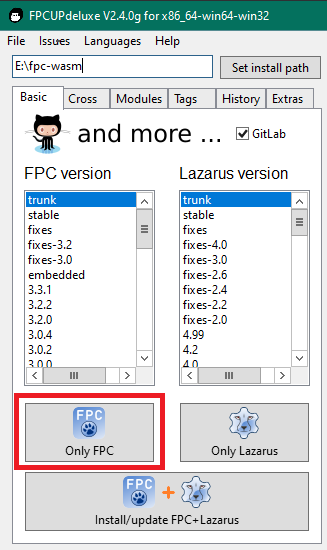
Step 3: Install FPC trunk
- Under the Basic tab, select trunk version from the list
- Click the Only FPC button
- Wait for it to compile (this takes a few minutes)
Step 4: Add the WebAssembly cross-compiler
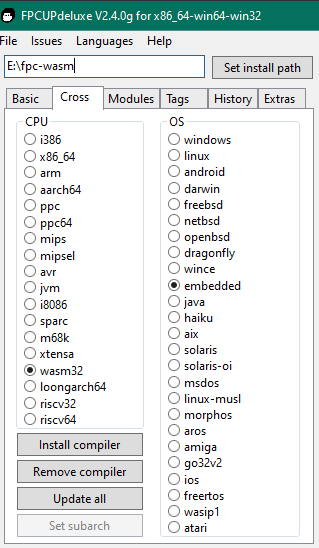
- Go to the Cross tab
- CPU:
wasm32 - OS:
embedded - Click Install compiler
- (Note: This might need a retry or two – it’s finicky)
Step 5: Verify it worked
This is the last step, verify if the installation works
I’m using E:\fpc-wasm as the installation directory, you can change it depending on the previous steps
You can choose either one of these options:
Option 1: Use the -iV switch
E:\fpc-wasm\fpc\bin\x86_64-win64\ppcrosswasm32.exe -iVIt should output the version number, something like 3.3.1
Option 2: Use test-path
Test-Path "E:\fpc-wasm\fpc\bin\x86_64-win64\ppcrosswasm32.exe"If it outputs True, then you’re good to go
What’s Next?
Part 2 – Your first WASM program (coming soon)